

The Avalon Home series products, such as the Avalon Nano and Avalon Mini, are cryptocurrency mining devices designed by Canaan specifically for home environments. Unlike professional miners used in large-scale mining farms, the Home series emphasizes ease of use and silent operation, making them suitable for running in a household setting.
However, precisely because of the "home" usage scenario, remote control becomes an issue that needs careful attention. Canaan has placed security at the forefront of its design — all control methods are confined to the local network, and the only external network connection for the device is the mining pool that the user configures themselves.
The intention behind this design is to prevent public cloud servers from sending commands to the device, thereby reducing the risk of centralized attacks or unauthorized configuration changes. In short: it is secure, but at the cost of "out-of-the-box" remote control convenience.
The good news is that the official team provides a solution that balances security and convenience. This article will guide you through it step by step.

Whichever solution you choose, there is a common core prerequisite:
You need a computer on the same local network as your Avalon Home device to act as a "jump host" for remote control.
This computer must meet the following conditions:
· Connected to the same router/switch as the Avalon Home device
· Installed and running the Avalon Family app (Mac version from the App Store; Windows/Linux via Android emulator)
· Remote desktop feature enabled (Screen Sharing on Mac, Microsoft Remote Desktop on Windows, VNC on Linux)
The essential logic of remote control: Connect from an external network to this home computer → Use the Avalon Family app on the home computer → Control the Avalon Home device.
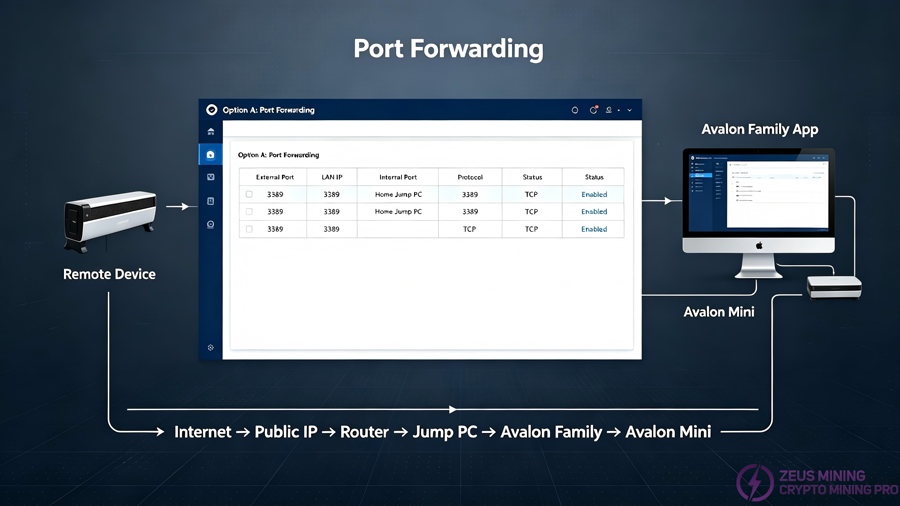
If your home network has a public IP, this is the most straightforward and lowest‑latency solution.
Steps:
1. Enable remote desktop on the home computer and install the Avalon Family app.
2. Obtain the public IP address of your home network.
3. Configure port forwarding on your router to forward external access requests to the home computer's internal IP address and remote desktop port.
4. If the public IP is dynamic, it is recommended to use a DDNS service to bind it to a fixed domain name.
5. On your remote device, use a remote desktop client to connect to the home computer via the public IP or DDNS domain name.
6. Once connected, open the Avalon Family app on the home computer to remotely control the Avalon Home device.
If your home network is behind NAT and does not have a publicly accessible IP, you can use the remote desktop software RustDesk to establish a connection.
RustDesk is an open‑source remote desktop program that supports self‑hosted servers or the official service.
1. If you are a beginner, we recommend using RustDesk's official service.
Steps:
(1) Download and install the RustDesk client on both the home computer and the remote device.
(2) After installation, each device generates a unique ID and a one‑time password.
(3) On the remote device, enter the home computer's ID, click Connect, and verify the password to gain remote access.
Note: When using the official service, data will be relayed through RustDesk's official servers. Please carefully assess privacy risks.
2. If you require higher privacy, we recommend self‑hosting RustDesk server.
Steps:
(1) You need a VPS with a public IP address.
(2) Deploy rustdesk‑server on the VPS.
(3) Configure the server ID, IP address, and key in the client.
(4) The subsequent operation is the same as using the official service.
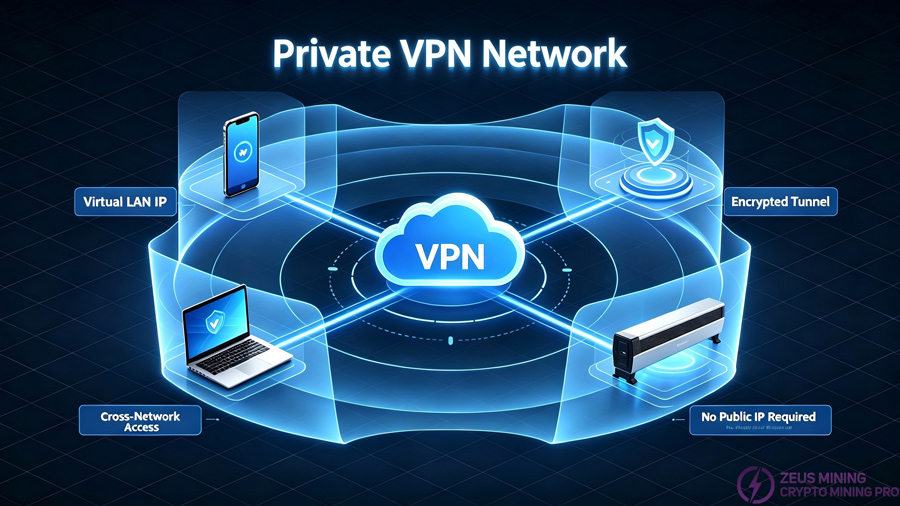
Tailscale is a lightweight VPN networking tool that creates a private encrypted network among multiple devices. It is also open‑source and supports self‑hosted servers.
Steps:
1. Download and install Headscale.
Typically, you need a VPS with a public IP address to download and install Headscale, which acts as a private VPN server. After installation, the service starts automatically, and you can create new users with the command 'headscale users create <USER>'.
2. Install the Tailscale client on both the home computer and the remote device. When logging in, select "Use an alternate server to add an account" and enter the server's IP address.
3. Copy the device parameters from the URL, then use the command 'headscale nodes register --user <USER> --key <YOUR_MACHINE_KEY>' in the server environment to verify the device.
4. After all devices are logged in, use a remote desktop client to connect to the home computer via the VPN‑assigned IP address.
5. Once connected, control the Avalon Home device through the Avalon Family app.
The three options above all operate at the software level, providing full management functions such as configuration changes and hash rate monitoring. However, during prolonged operation, miners may occasionally encounter extreme situations like crashing or becoming unresponsive. In such cases, software control may fail, and a smart plug becomes useful.
Core principle
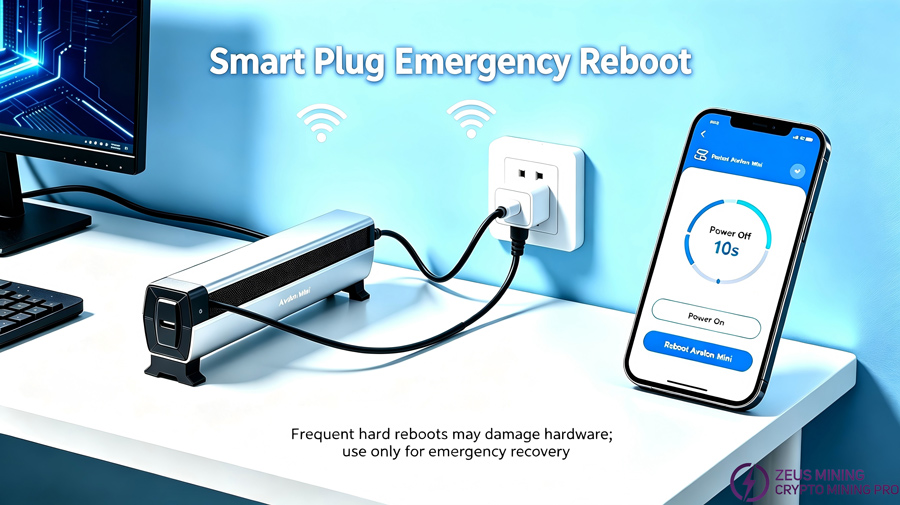
Plug the Avalon Home miner's power cord into a remotely controllable smart plug. Through a mobile app, you can cut or restore power to the miner anytime, anywhere, performing a "hard reboot."
Steps:
1. Prepare a compatible smart plug and set up its Wi‑Fi connection according to the instructions.
2. Plug the Avalon Home miner's power cord into the smart plug.
3. Test the remote on/off function in the mobile app.
4. When you need to restart the miner, first perform the "Off" operation, wait 10 seconds, then perform the "On" operation.
Cautions:
(1) Frequent use is not recommended; improper shutdown may damage the miner's hardware or storage card.
(2) This method cannot modify the miner's internal configuration; it can only restart the device.
(3) Ensure that the smart plug itself has a stable Wi‑Fi connection; otherwise, remote control will also fail.
Demension | Public IP | RustDesk | Tailscale | Smart Plug |
Core dependency | Public IP + Port forwarding | VPS self-host / official service | VPS self-host / official service | Smart plug + App |
Technical difficulty | Medium | Medium-high | Medium-high | Simple |
Privacy and security | High | Self- host: high / Officail: average | High | N/A |
Latency | Lowest | Depends on relay server | Low (P2P direct) | N/A |
Bset for | Home network with public IP | No public IP, prefer desktop tools | No public IP, prefer VPN | Emergency recovery, complementary to above |
Whichever option you choose, the core concept remains the same: use the home computer as a "bridge node," securely access the home network from outside via remote desktop or VPN, and then control the Avalon Home device indirectly through the Avalon Family app.
Related Product:
Avalon Mini 3 Bitcoin heater miner
About authorJay Zha | ZEUS MINING Senior Hardware Engineer
Specializing in ASIC miner fault diagnosis and repair, with many years of experience repairing the entire Antminer series (S19, S21, L7, L9, etc.). Proficient in quickly locating faults in core modules such as fans, power supplies, temperature controllers, and ASIC chips through kernel logs, and dedicated to providing mining farm operators and maintenance technicians with systematic and operational troubleshooting guides.
🏷 Area of expertise: ASIC miner repair
📱 WhatsApp: +86 19123969124
 China Mainland Hong Kong
  Business Hours: (GMT+8) 08:30-20:00 Mon to Sat
  Company Phone: +86-023-72227777